
How to create a public offer, a privacy policy and contacts
How to get a public offer, a refund policy, a privacy policy and contacts under Ukrainian law in a few minutes — and what to check before you connect payments.
Short answer
Open "Settings → School", in the "School documents" section click "Create from a questionnaire", enter your sole proprietor (FOP) details, answer the questions about the product and refunds, review the documents and click "Save documents". The texts appear on your school's site, and you can edit them by hand.
In this guide
Why you need these documents
Before connecting you, payment systems check your site: it must have a public offer, refund terms, a privacy policy and the seller's details. The e-commerce law also requires showing buyers who is selling. The generator writes all four documents from standard terms and your answers — in Ukrainian, as Ukrainian law requires. In the dashboard the offer is called Terms of Use. What to do next with payments: How to connect payments with Monobank or WayForPay.
Create the school's documents
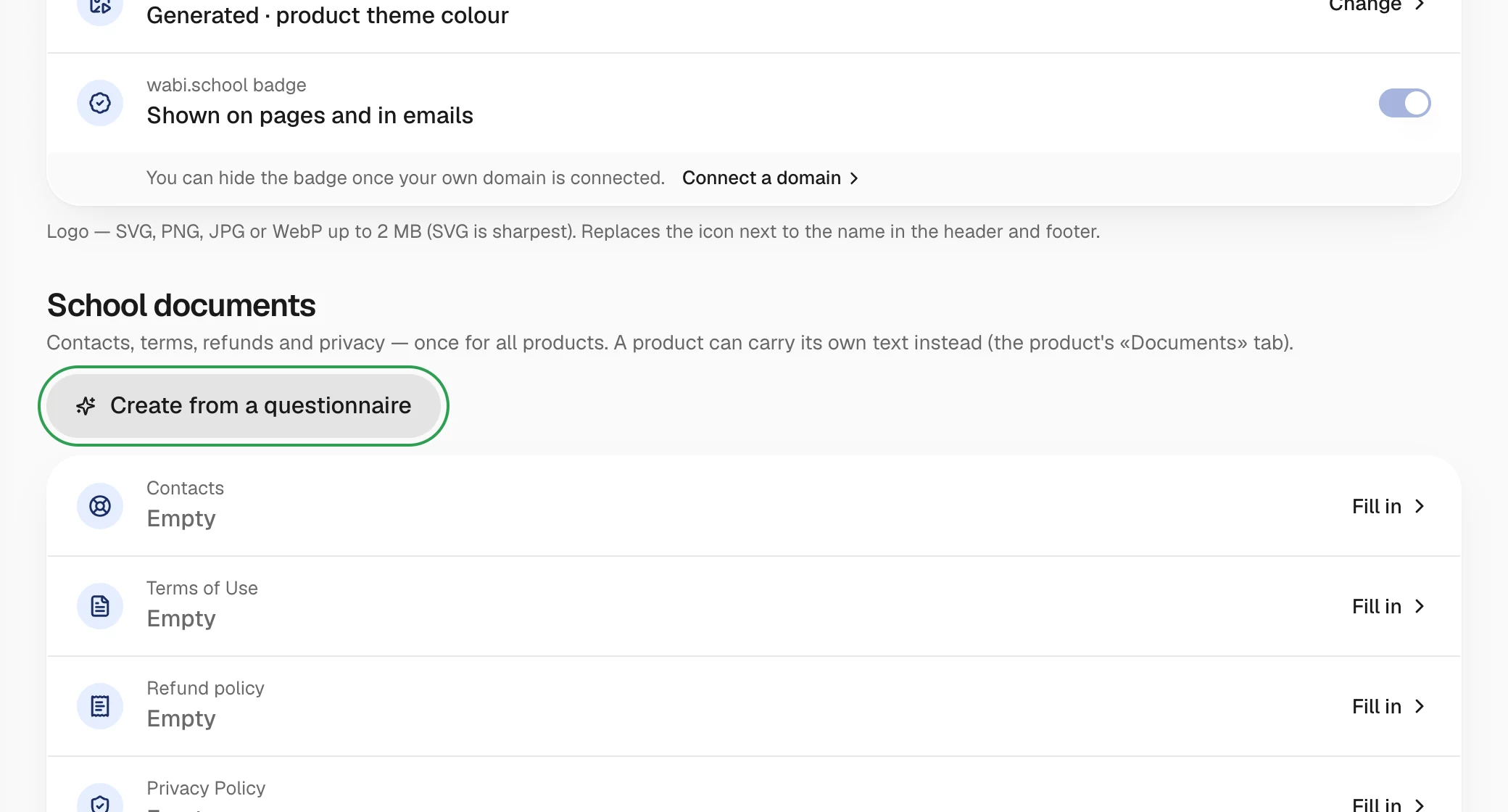
- Open Settings → School → School documents.
- In the School documents section, click Create from a questionnaire.
Do it in your dashboard
Create documents from a questionnaireOpens the right screen of your dashboard.
Country and seller details
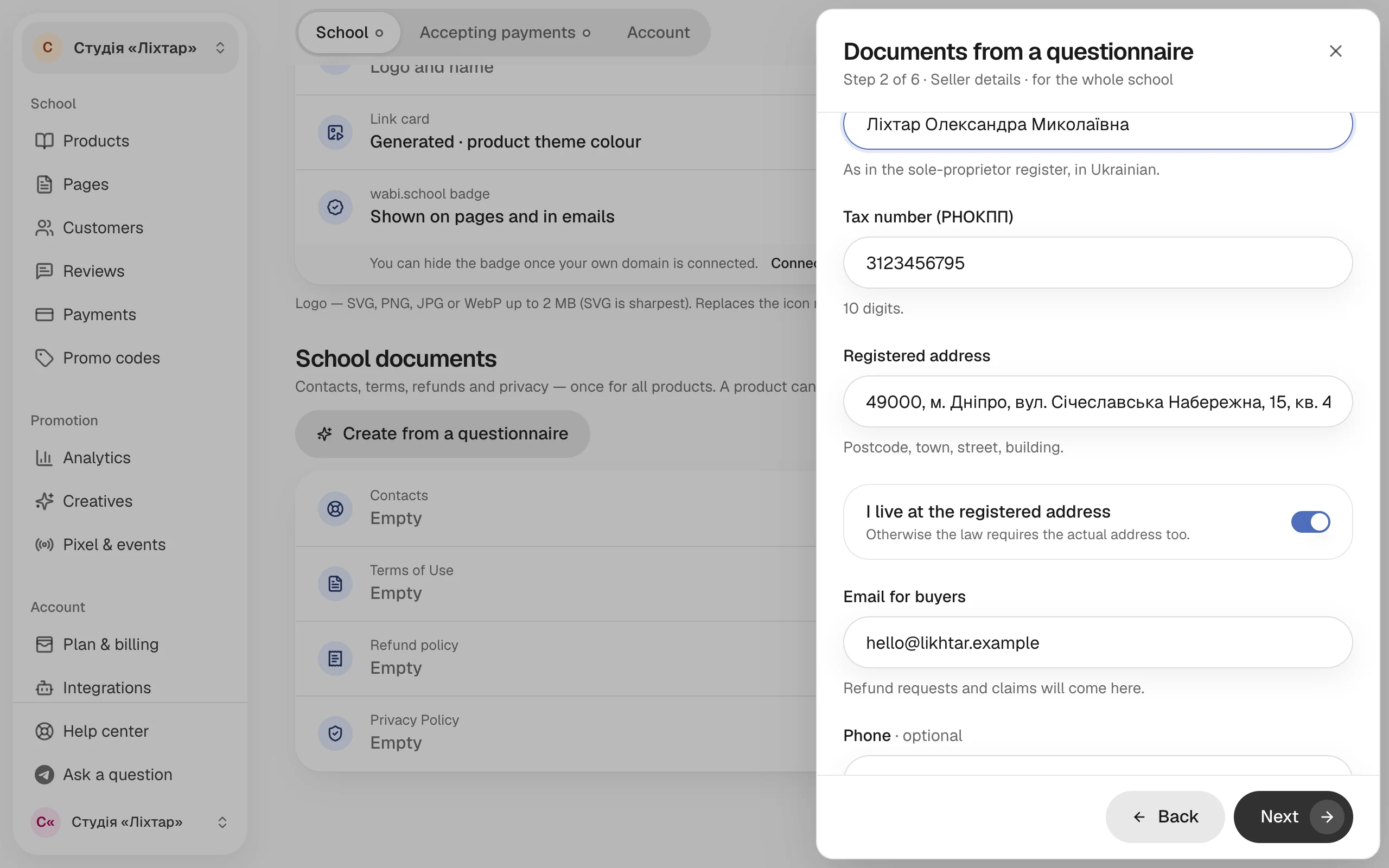
Choose the country where the seller is registered. For now that's Ukraine and a sole proprietor (FOP). Then enter the details: full name, tax number (RNOKPP), registered address, email and phone. They go into Contacts and into the offer's details. Next time the questionnaire opens straight at the product questions — your details are saved.
Product
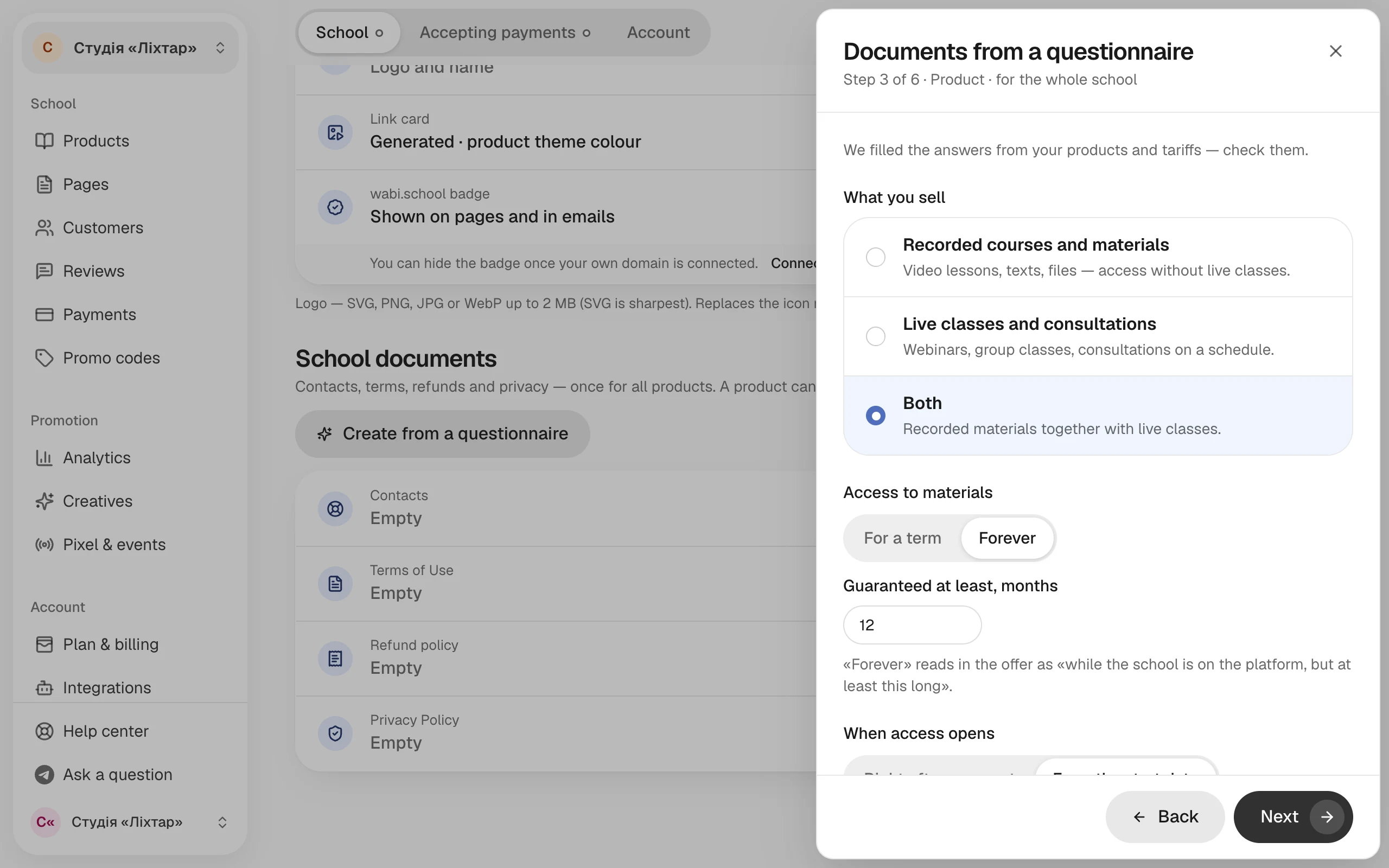
Check the answers about the product: what you sell, how long access lasts and when it starts. We filled them in from your products and tariffs.
Refunds
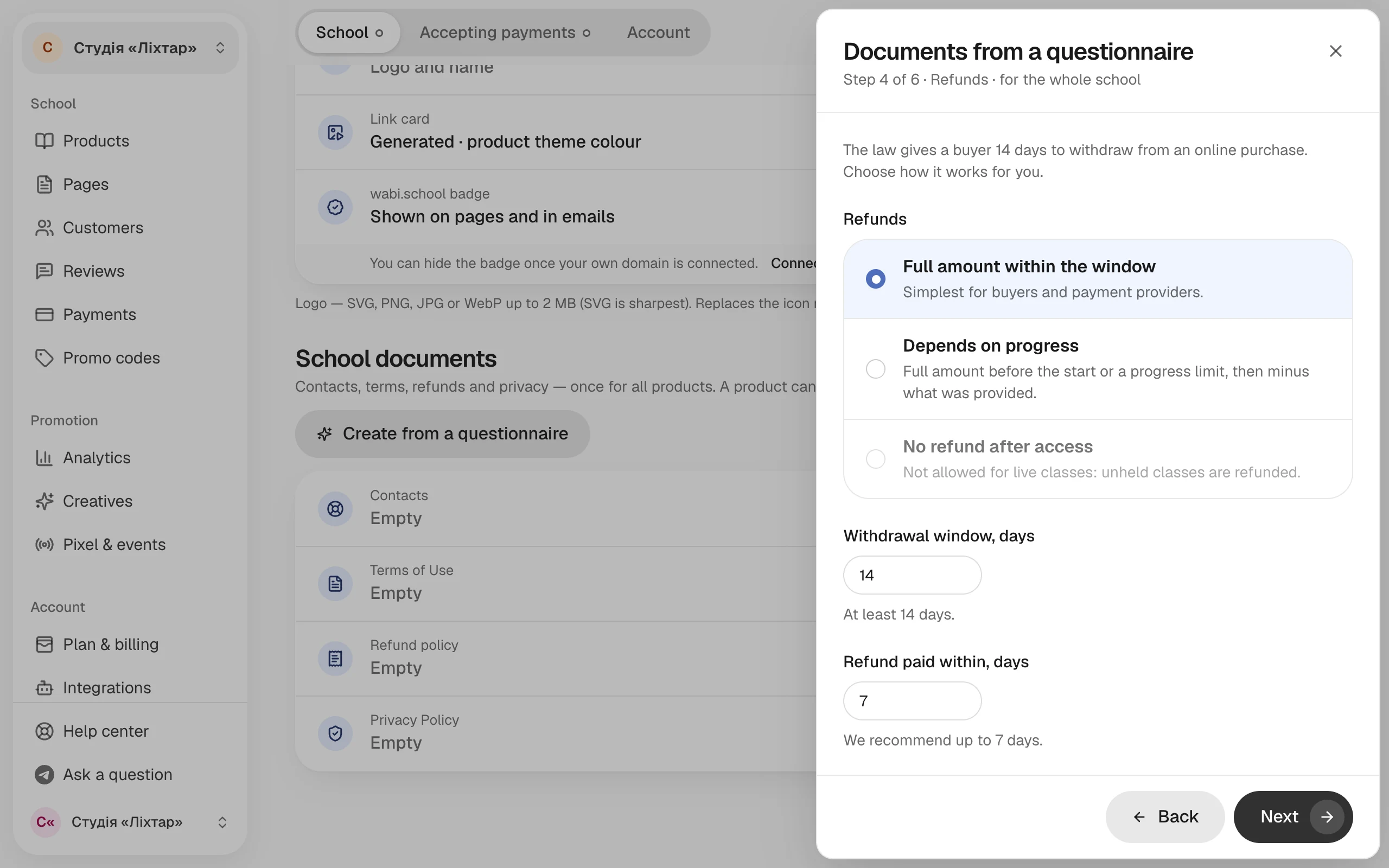
Choose how refunds work and set the time limits. Below the options you see how a buyer will read it.
Payments and data
Mark whether you have subscriptions, payment in instalments, promo codes and cash payment at events, and which buyer data you collect. The generator takes the payment system, ad pixels and Telegram from your school settings — it doesn't ask about them separately.
Review
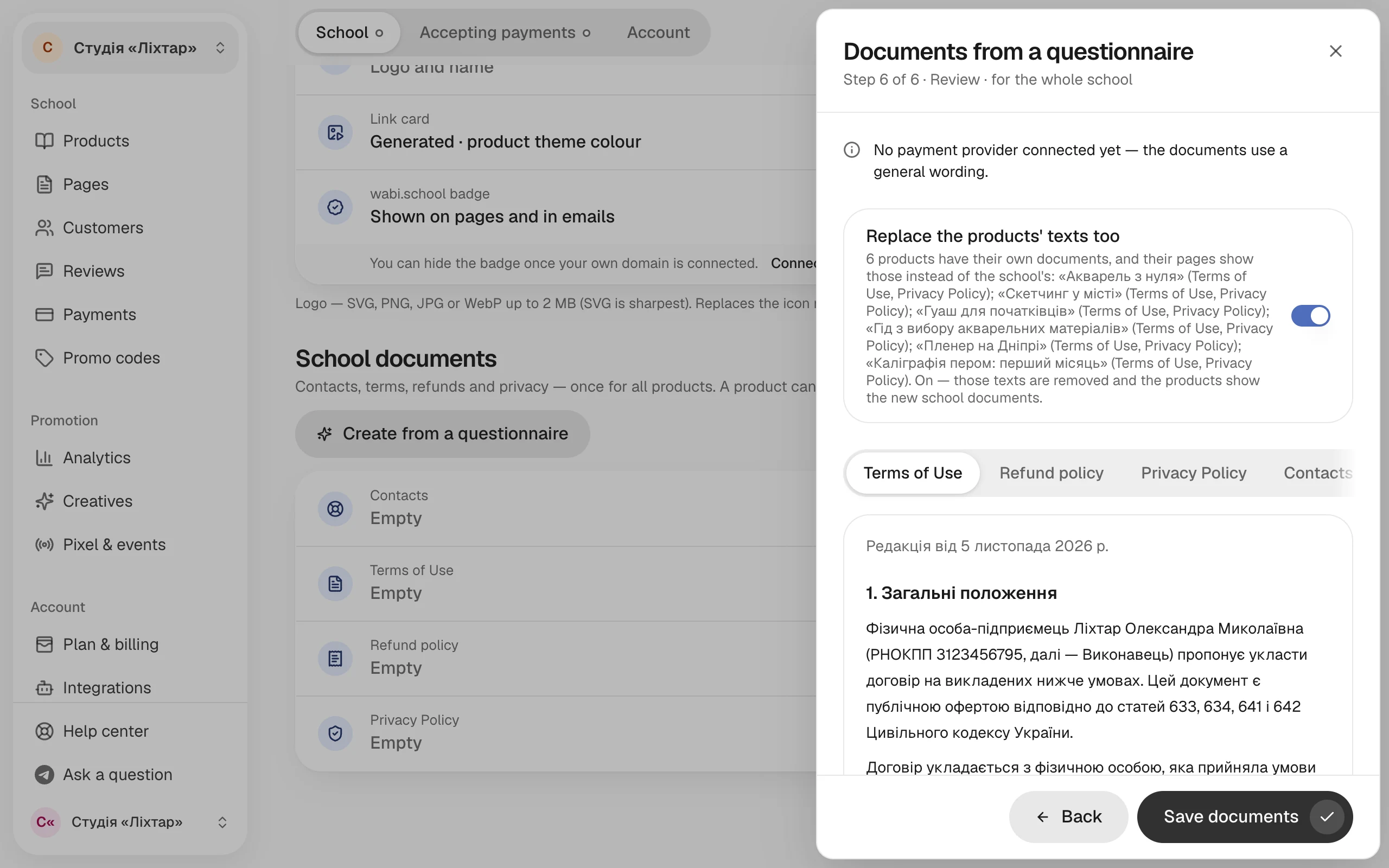
Fix everything marked in red: the Fix button takes you back to the right step. Look through each document and click Save documents.
If some products already have their own documents, this step has the Replace the products' texts too switch. When it's on, the products' texts are deleted and their pages show the new school documents. Turn it off if a product's terms should stay its own.
Refunds
The law gives a buyer 14 days to withdraw from an online purchase. For live classes, the cost of classes that haven't happened yet is always refunded. The "no refund after access" option is possible only for recorded materials and only with the buyer's separate consent — until checkout asks for it, the document honestly says the buyer keeps the 14 days.
A product's own documents
If a product has different terms, open the product, go to the Documents tab and click Create for this product. The product gets its own Terms of Use and Refund policy, while Contacts and the Privacy Policy stay the school's.
If you changed something
After saving, you can edit the documents by hand. To update them from the questionnaire, click the button again — your answers are saved. If you edited the texts by hand, the generator warns you that the new texts will replace those edits.