
Payments and refunds
Where to see your clients' payments, how to handle a refund request, return the money and close access, and what the subscriptions tab shows.
Short answer
All payments are in the "Payments" section. To refund, first return the money in your Monobank or WayForPay account, then confirm the client's request in Wabi on the "Refunds" tab or choose "Refund" on the client's card. Access closes right away and the payment is marked as refunded.
In this guide
Where to see payments
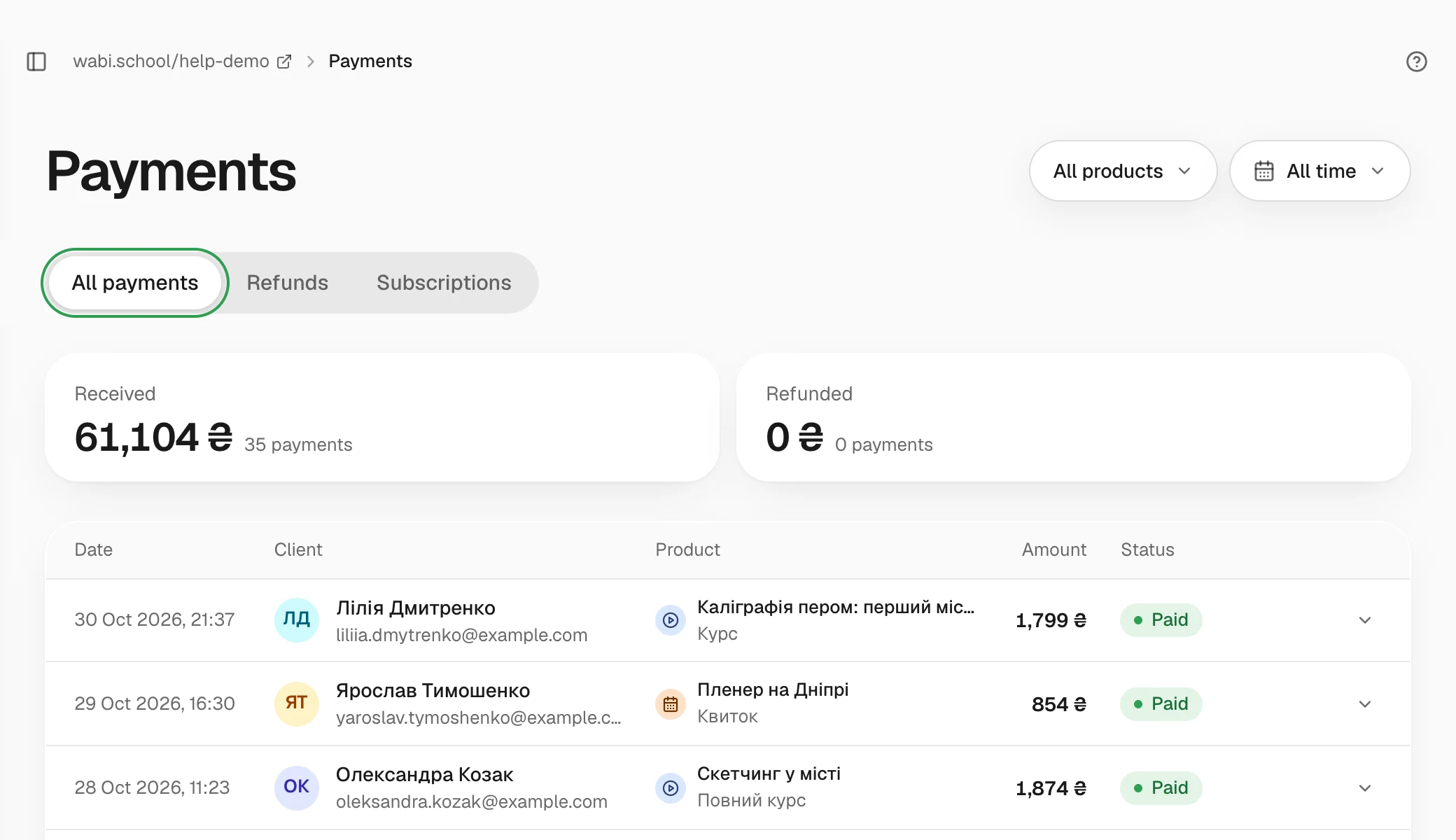
Open Payments. The All payments tab lists all payments from newest to oldest: date, client, product, amount and status. Click Payment details to see the payment number, the payment system and the payment method. Payments you added by hand are marked External payment.
At the top you can pick a product and a period. Above the table you see how much was Received and how much was Refunded in that time.
How to refund money
Wabi does not transfer money itself. Payments go straight to your account, so you return them yourself.
- Refund the client in your payment system's account: Monobank or WayForPay.
- Mark the refund in Wabi in one of the two ways below.
After you confirm, the client's access to the product closes right away, the payment becomes Refunded, the subscription for that tariff is cancelled, and the promo code the client used becomes available to them again.
If the client sent a request
A client can ask for a refund from their library and give a reason. New requests appear on the Refunds tab, with their count next to it.
- Open the Refunds tab and find the request in the New requests block.
- If you have already returned the money, click Approve refund. Add a comment if you need to.
- If you will not refund, click Reject. The client's access stays as it is.
If there is no request
Open the client's card in Customers, choose Refund in the menu, enter the amount and the reason, and click Refund and close access. You can refund part of the amount, but access still closes completely.
Subscriptions
The Subscriptions tab shows all subscriptions: client, tariff, status, amount and the date of the next charge. Overdue ones come first. These are subscriptions where a charge failed.
A client can cancel a subscription in their library, and access stays until the end of the paid period. A cancelled subscription does not renew. To continue, the client starts a new one.