
How to connect payments with Monobank or WayForPay
Connect Monobank or WayForPay acquiring so clients can pay you. Money goes straight to your account. How to paste keys, check the connection and switch.
Short answer
Open "Settings → Accepting payments", pick Monobank or WayForPay, paste the key from the payment system's account and click "Connect". All payments for your school go through the one system that is on, and the money arrives straight in your account.
In this guide
What you need
An acquiring agreement with Monobank or WayForPay and access to their account. Wabi never holds your money: the client pays through your payment system, and the funds go straight to your account.
You can publish a product before you connect payments, because payment systems often check a live site before they issue keys. Until payments are connected, though, nobody can buy a paid tariff.
The offer, refund policy, privacy policy and contacts a payment system looks for can be made from a questionnaire: How to create a public offer, a privacy policy and contacts.
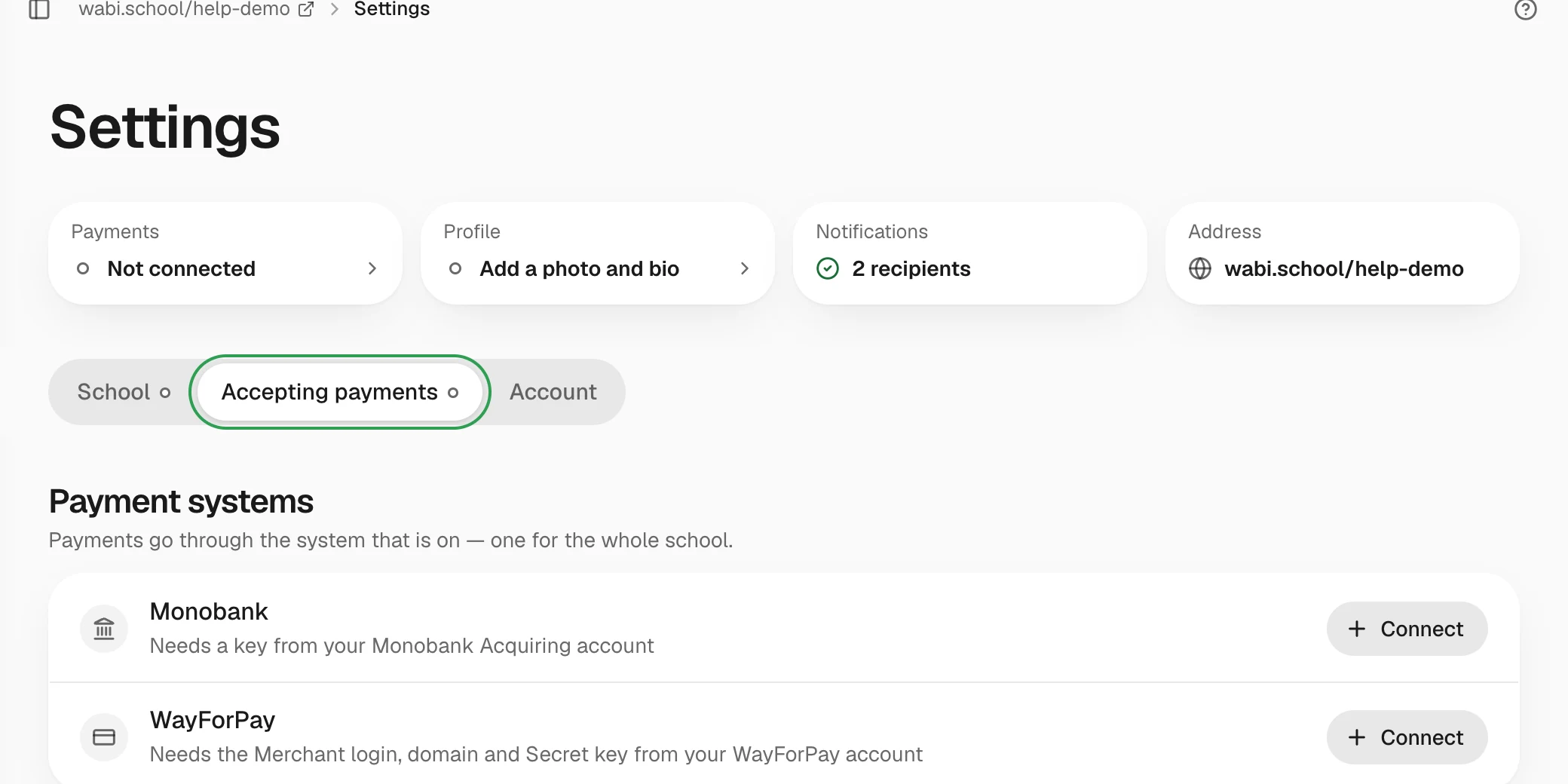
Connect Monobank
- Open Settings → Accepting payments.
- In the Monobank row, click Connect.
- Copy the key from your Monobank Acquiring account and paste it into the Monobank key field.
- Click Connect. Wabi checks the key with Monobank right away.
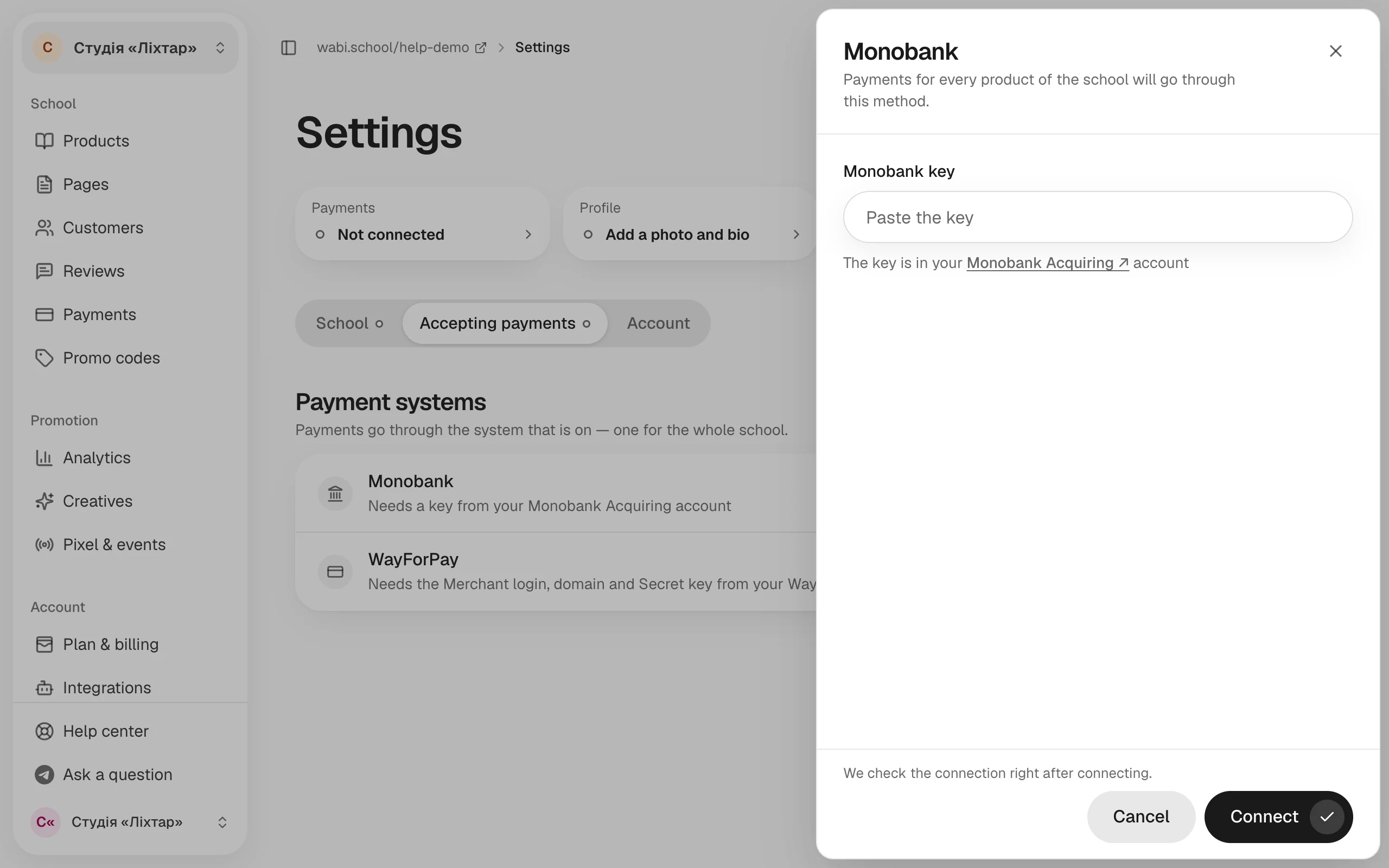
If the key doesn't work, you see this under the field: The key is rejected. Make sure you copied the right key from the payment system's account. Copy the key again, in full, with no spaces.
Connect WayForPay
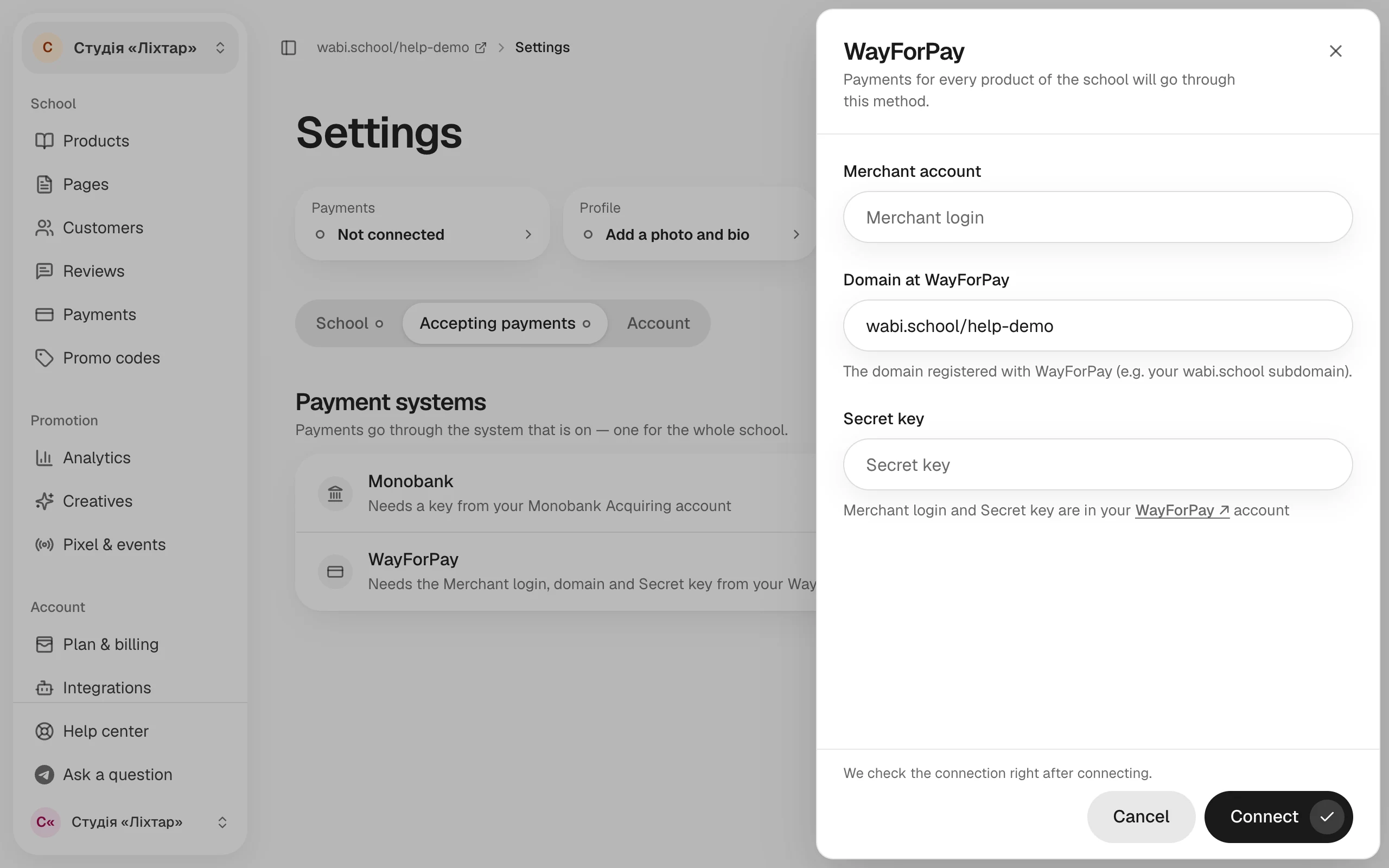
- Open Settings → Accepting payments and click Connect in the WayForPay row.
- In your WayForPay account, find the Merchant login and the Secret key.
- Fill in the Merchant account and Secret key fields.
- Check the Domain at WayForPay field. Wabi fills in your school's address. If you registered a different domain with WayForPay, enter that one.
- Click Connect.
Check that payments work
The system that is on shows On, with Takes payments under its name. For Monobank, the system's window has a Check button that tests the key again.
If the system shows Not working, the key has stopped working and clients can't pay. Open the system, paste a new key and save.
How to switch payment systems
You can connect both systems, but only one takes payments, for all your school's products. To move to the other one, turn on its switch and confirm. New payments go through the new system, while payments and subscriptions already in progress finish in the old one.
You can't turn off the system that currently takes payments: One system always takes payments — to change it, turn another one on.
Payments are connected, so clients have something to buy as long as you've set up tariffs: How to set up tariffs for a product.