
How to set up tariffs for a product
A tariff is what a client buys: price, access period, spots and what is included. How to add a tariff, offer a discount, limit spots, and hide or highlight it.
Short answer
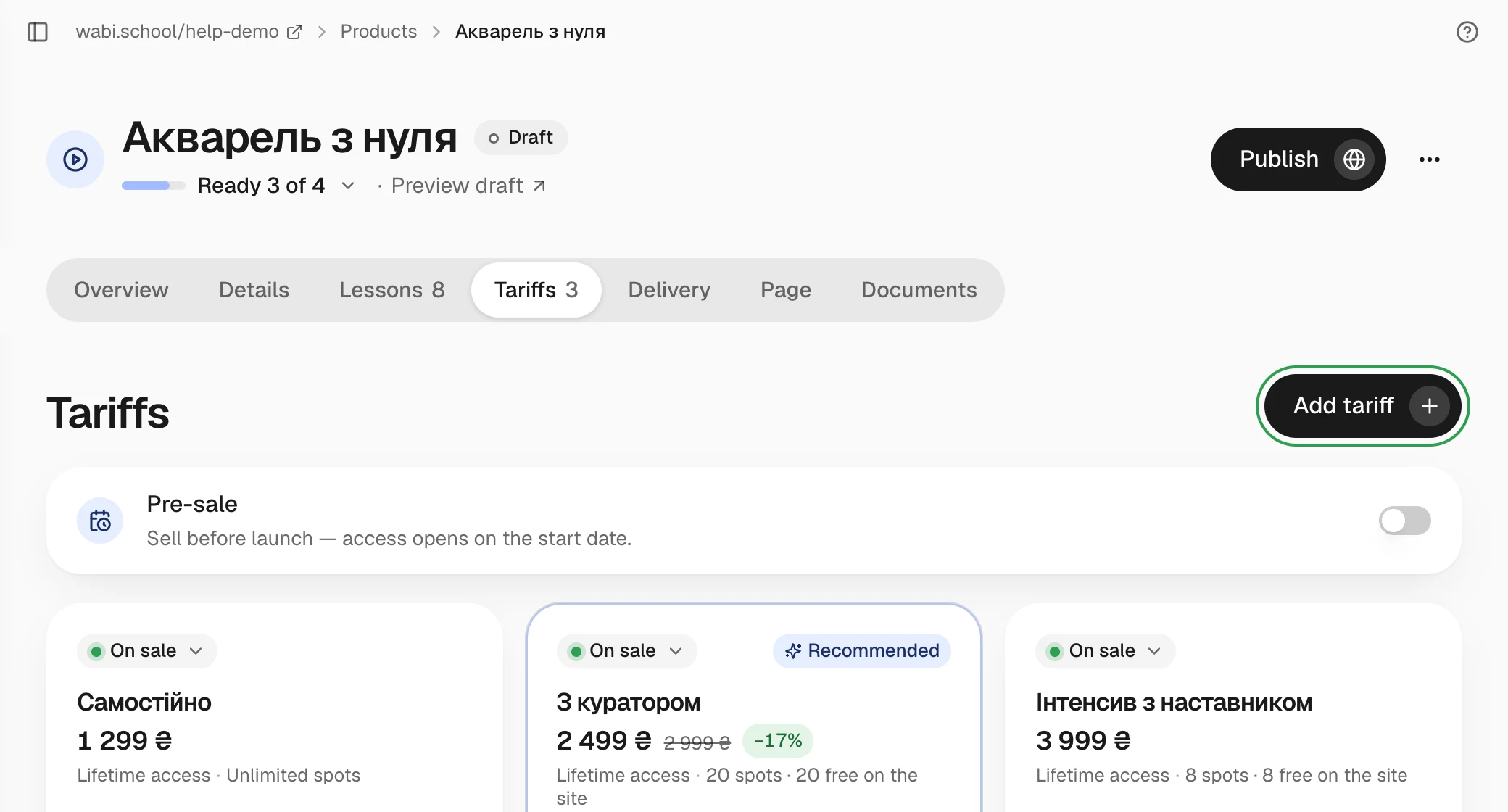
Open the product, go to the "Tariffs" section and click "Add tariff". Enter a name, a price in hryvnias and the access period, optionally add a discount, a list of what's included and a spot limit, then click "Save tariff". The new tariff is on sale right away.
In this guide
What a tariff is
Without a tariff there is nothing to buy, so to start selling you need at least one tariff with the status On sale. You can have several, for example "Self-paced" and "With a mentor", each with its own price and terms.
Add a tariff
- Open the product and go to the Tariffs section.
- Click Add tariff.
- Fill in the Tariff name field, for example "Full access".
- In the Price field, enter the amount in hryvnias. A price of 0 makes the tariff free.
- In the Access after payment block, choose how long access lasts: from one month to a year, or a number of days you set. Digital products can also have lifetime access.
- In the What's included block, briefly list what the client gets. These items appear on the product page.
- Click Save tariff.
Discount, spots and payment label
- Discount. Click Add a discount and enter the old price. Clients see it crossed out next to the new price. The old price must be higher than the new one.
- Spot limit. In More, choose Number of spots → Limit and enter a number. If you already sold some spots outside Wabi, enter them in the Manually reserved field. When the spots run out, the tariff stops selling.
- Bundle. To let one tariff open several courses at once, select them in the Courses in the bundle block. You can add only published online courses from your school to a bundle.
- Payment window label. This is how the bank describes the purchase. An empty field uses the default name.
For a discount that only some buyers get, use a promo code: How to create a promo code.
Tariff status
You change the status on the tariff card:
- On sale: the tariff shows on the page and clients can buy it.
- Announcement: the tariff shows with a "Coming soon" label, but nobody can buy it yet. Use it to show a price in advance.
- Hidden: the tariff doesn't show on the page. Clients who already bought it keep their access.
To make clients notice a tariff, choose Highlight here in the card's menu.
Deleting and changing after sales
You can't delete a tariff that has been bought. Hide it instead, and buyers keep their access. You also can't change its type (regular, subscription or jar), so create a new tariff. You can change the price, description and list of what's included at any time, and this doesn't affect people who already bought.