
How to archive, duplicate or delete a product
What archiving does, how to bring a product back from the archive, how to make a copy of a product and when a product can be deleted for good.
Short answer
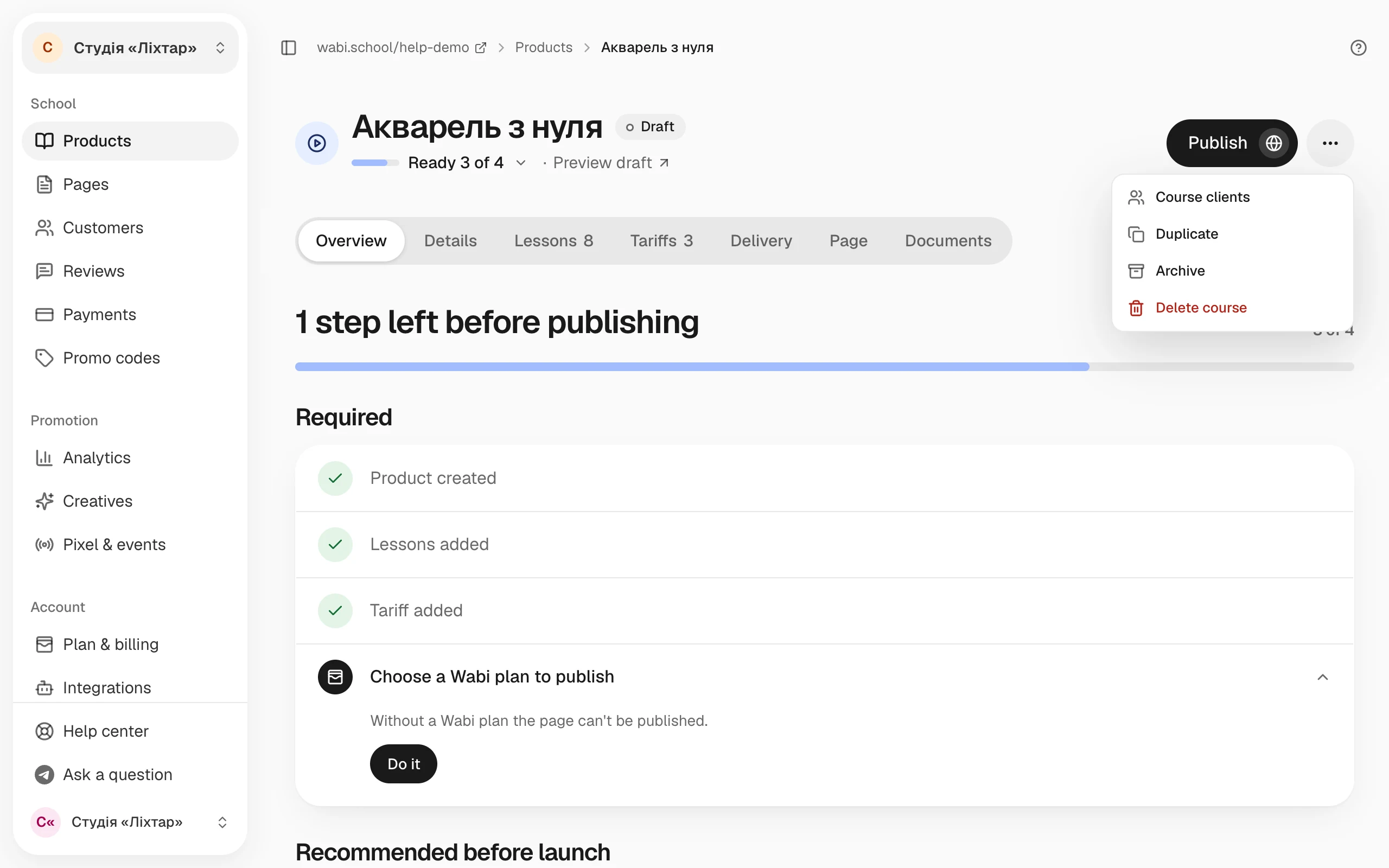
Open the product, click "⋯" at the top of the page and choose "Archive", "Duplicate" or "Delete". Archiving stops sales, and buyers keep access until their period ends. A product that was bought can be deleted only from the archive, once every client's access has ended.
In this guide
All three actions are in the "⋯" menu at the top of the product page, next to the publish button.
Archive a product
- Open the product and click "⋯" at the top of the page.
- Choose Archive.
- Read what will change and click Archive.
After that:
- sales stop, and the product leaves your school's storefront and the lists on your site;
- clients who already bought keep watching the lessons or downloading the files until their access ends;
- subscriptions to the product's tariffs no longer renew: access lasts to the end of the paid period, and the buyer gets an email;
- the product gets the status Archived and moves to a separate collapsed archive list on your dashboard home.
You can't archive a product that is part of another product's bundle tariff. Wabi shows Another product's bundle includes this product. Remove it from that bundle or turn that tariff off first.
Bring a product back from the archive
Open the product and click Restore from archive. The product becomes a draft with the status Draft. To sell it again, click Publish: How to prepare and publish a course.
Make a copy of a product
- Save your changes on the product page: the copy is made from the saved version.
- Click "⋯" at the top of the page and choose Duplicate.
The copy opens with "(copy)" in its name. It is always a draft, with its own address. The copy gets the lessons and modules, materials, files, tariffs and the product page. You don't need to upload ready videos again: the copy uses the same ones.
Clients, reviews, promo codes, analytics, creatives, designs from the AI agent, videos on the product page and the page's version history are not copied.
Delete a product
How you delete a product depends on whether anyone bought it.
Nobody bought the product. You can delete it right away:
- Click "⋯" and choose Delete course (for an event, Delete event; for a digital product, Delete product).
- In the Type the name to confirm field, type the product's name.
- Click Delete for good.
The product disappears together with its lessons, videos, files and page. It can't be restored.
The product was bought. You need to archive it first: if you choose to delete it, Wabi offers to archive it right there in the same window. You can delete the product from the archive once every client's access has ended. If access is still running, Wabi shows the date after which you can delete it.
After you delete a product that was bought, its payments and clients stay in your dashboard under its name, and the product's address becomes free.