
How to connect an ad pixel
How to connect a Meta, TikTok or Google Analytics pixel, which events Wabi sends to the network and how to check that they arrive.
Short answer
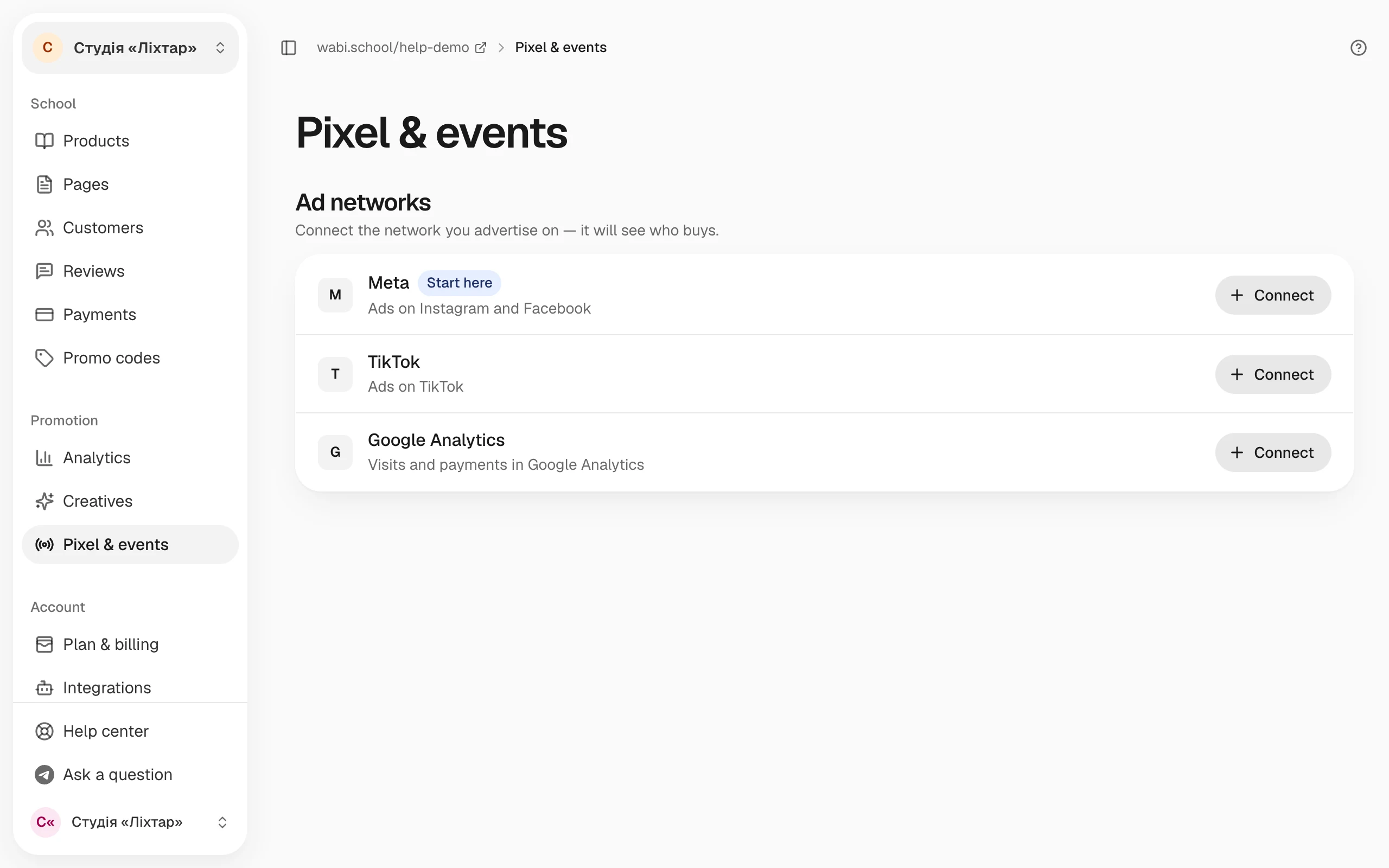
Open "Pixel & events", click Meta, TikTok or Google Analytics, paste the pixel ID and the access key, click "Check" and save the connection. From then on Wabi sends page views, checkout starts and payments to the network. In your ad campaign, choose the payment event: Purchase in Meta, CompletePayment in TikTok, purchase in Google.
In this guide
A pixel tells an ad network who opened your school's pages and who bought. The network uses it to measure a campaign and to find similar buyers. You can connect Meta (ads on Instagram and Facebook), TikTok and Google Analytics: one network or several at once.
What you need
- Access to the network's account: Events Manager in Meta or TikTok, or Google Analytics.
- Two values from there: the pixel ID (in Google Analytics, the stream's Measurement ID) and an access key. The connection window in Wabi tells you where to find each one.
Connect a network
- Open Pixel & events.
- In the Ad networks block, click Connect in the row of the network you need.
- Paste the pixel ID. In Meta it is 15–16 digits, in TikTok the Pixel Code is 20 Latin letters and digits, and in Google Analytics the Measurement ID looks like G-XXXXXXXXXX. It is in the top right corner of your web stream's page: Admin → Data streams. If Google offers a «Set up a Google tag» window with a GTM-… code, close it: you don't need that code, Wabi adds the tag to your school's pages.
- Paste the access key: in Meta, a Conversions API token; in TikTok, an Events API token; in Google Analytics, a Measurement Protocol API secret.
- Click Check. Wabi sends a test event and shows whether the network accepted it.
- Click the connect button at the bottom of the window. The network then shows the status Working, the pixel ID and, after the first event, the time of the latest one.
Which events Wabi sends
The list of events appears on the page as soon as at least one network is connected:
- Page view: someone opened any page of your school.
- Product view: someone opened a product page.
- Plan chosen: someone clicked a tariff.
- Checkout started: someone opened the payment form.
- Payment: a payment went through, with its amount and currency.
- Sign-up: someone signed up for a free product.
The payment is marked Ad goal: choose this event in your ad campaign. Meta calls it Purchase, TikTok calls it CompletePayment, and Google Analytics calls it purchase.
Each event shows how many times the networks received it in the chosen period: today, 7, 30 or 90 days. Click an event to see an example of the latest one: the product, amount, page, device and whether each network accepted it. Wabi sends the client's email and phone only in encrypted form: the network recognises the person but doesn't see the data itself.
Turn off an event or a network
- An event. The switch in an event's row turns it off for all networks. You can't turn off Page view and Payment: without them the network can't optimise your ads.
- A network. The switch in a network's row stops events going to that network only. The connection is kept, and the status becomes Off.
- To disconnect completely, use the network's window. Campaigns and the pixel in the network itself stay as they are.
Test mode in Meta and TikTok
To see events in the Test Events tab of your ad account, open the network in Wabi, click Test event code and paste the code from Events Manager. While the code is set, the network shows the status Test mode.
If a network doesn't accept events
The status Not working and a banner at the top of the page mean that the network stopped accepting events.
- If the access key is no longer valid, the banner has an Update access key button. Create a new key in the network's account and paste it instead of the old one.
- Otherwise, click Check: the network's connection opens, where you can check the ID and the key.
To see where visitors come from and how many of them buy, use your school's analytics: How to read your school's analytics.