
How to read your school's analytics
What the Analytics tabs show, how to find where clients stop on the way to payment, and how to create an ad link with UTM tags.
Short answer
Open "Analytics" and choose a period and a product. "Audience" shows visits and payments, "Funnel" shows where people stop on the way to payment, and "Sources" shows where clients came from. To see each campaign separately, create a link with the "Create an ad link" button and use it in your ads.
In this guide
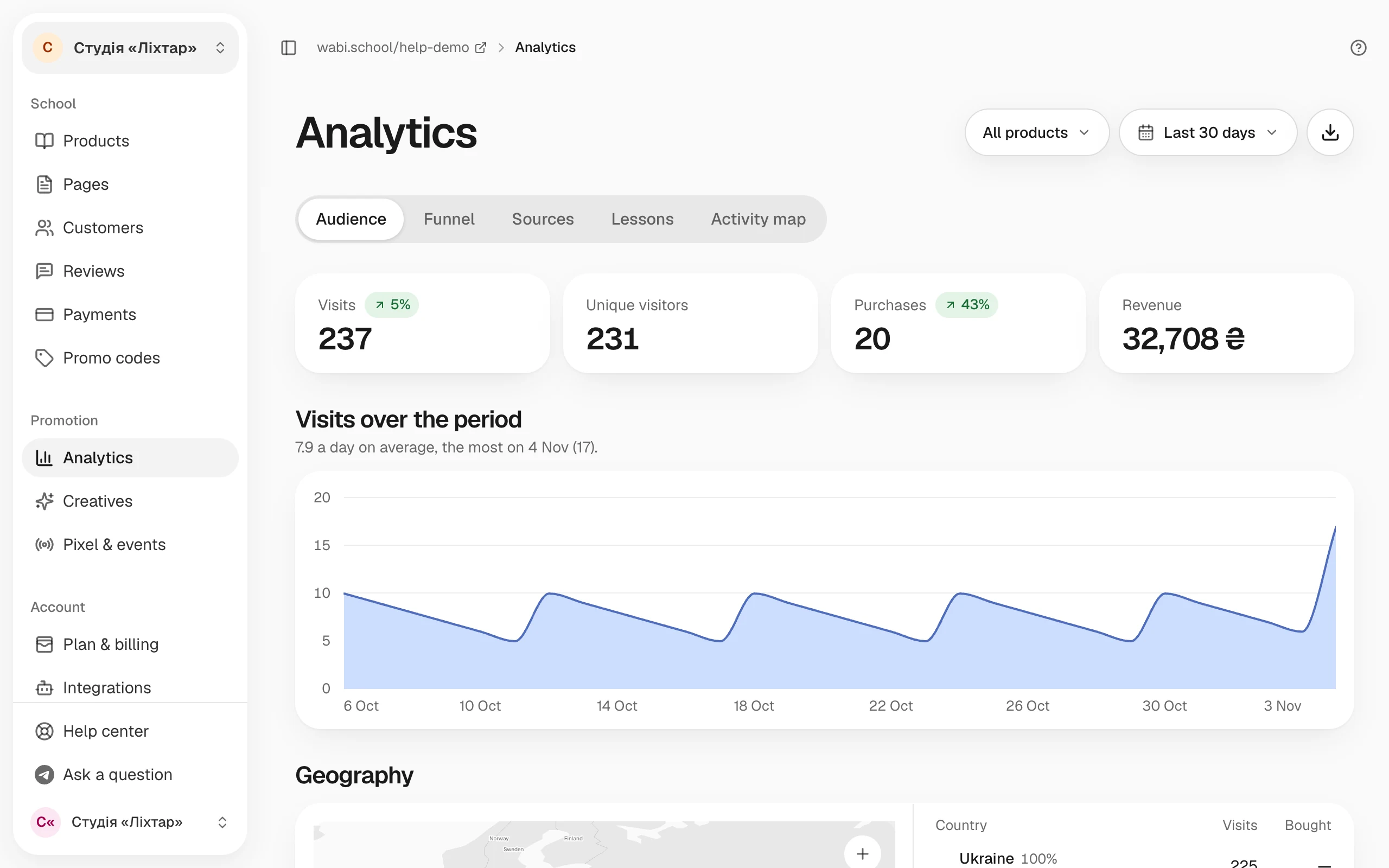
Analytics shows how many people visited your school's pages, where they came from and how many of them paid. At the top of the page, choose a period and a product, or All products. The numbers on every tab follow this choice.
Audience
- Open Analytics.
- On the Audience tab, look at the chart of visits, payments and revenue for the period. Next to it you see the change against the previous period of the same length.
- Below are Geography (which countries people visit and buy from), Pages (which pages they open) and Devices (phone or computer).
Funnel: where people stop
The Funnel tab shows four steps: Visited the page, Opened checkout, Started payment and Paid. The percentages are of everyone who visited. Hover over a step to see the rate from the previous one.
Wabi finds the step where the most people leave, and the What to do block suggests what you could change. With few visits the percentages aren't stable yet, so analytics advises you to bring in more visitors first.
Sources: where clients came from
The Sources tab groups visits, payments and revenue by channel: paid social, search, email, messengers, links from other sites and so on. Click a source to see its campaigns and creatives.
- Which source counts. Last source is where the person came from before paying. First source is where they first heard about you.
- Direct / untagged covers people who came without tags and without a known referring site, for example from a bookmark or by typing the address.
- Check your tags means the link has tags, but they don't tell which channel it is. Check how the link was built.
The Export CSV button at the top downloads a table by source: visits, payments, revenue, refunds and conversion.
Create an ad link with UTM tags
UTM tags are the part of a link that tells Wabi which ad or post a person came from. Without tags, a visit from an ad often ends up in Direct / untagged.
- On the Sources tab, click Create an ad link.
- In the Product field, choose a product. You can create a link only to a published product.
- In the Is it a paid ad? field, choose Paid ad or Free.
- In the Where you'll post it field, choose where you'll publish the link: Instagram, Facebook, TikTok, YouTube, Telegram, email and so on.
- Fill in the Campaign name field, for example "launch-november". The same name brings the results of the whole campaign together.
- Optionally fill in Creative or variant to compare different videos or banners within one campaign.
- Click Copy link and paste the link into your ad or post.
Wabi fills in the tags itself from your choices. You can see them in the Link tags (UTM) block. Change them only if you know why.
Lessons and the activity map
- Lessons, for a course with lessons: how many clients reach each lesson and where they stop in the video. The tab shows one course.
- Activity map, if your dashboard has it, overlays Scroll (how far people read) and Clicks (what they click) on a published product's page, separately for phone and computer. It also shows how each change to the page affected how many people see the tariffs and click "Buy".
To let ad networks see purchases too and optimise your campaigns, connect a pixel: How to connect an ad pixel.