
How to make an ad creative
How to make an image for an ad, post or story from your product page's texts and design, adjust it and download it in the formats you need.
Short answer
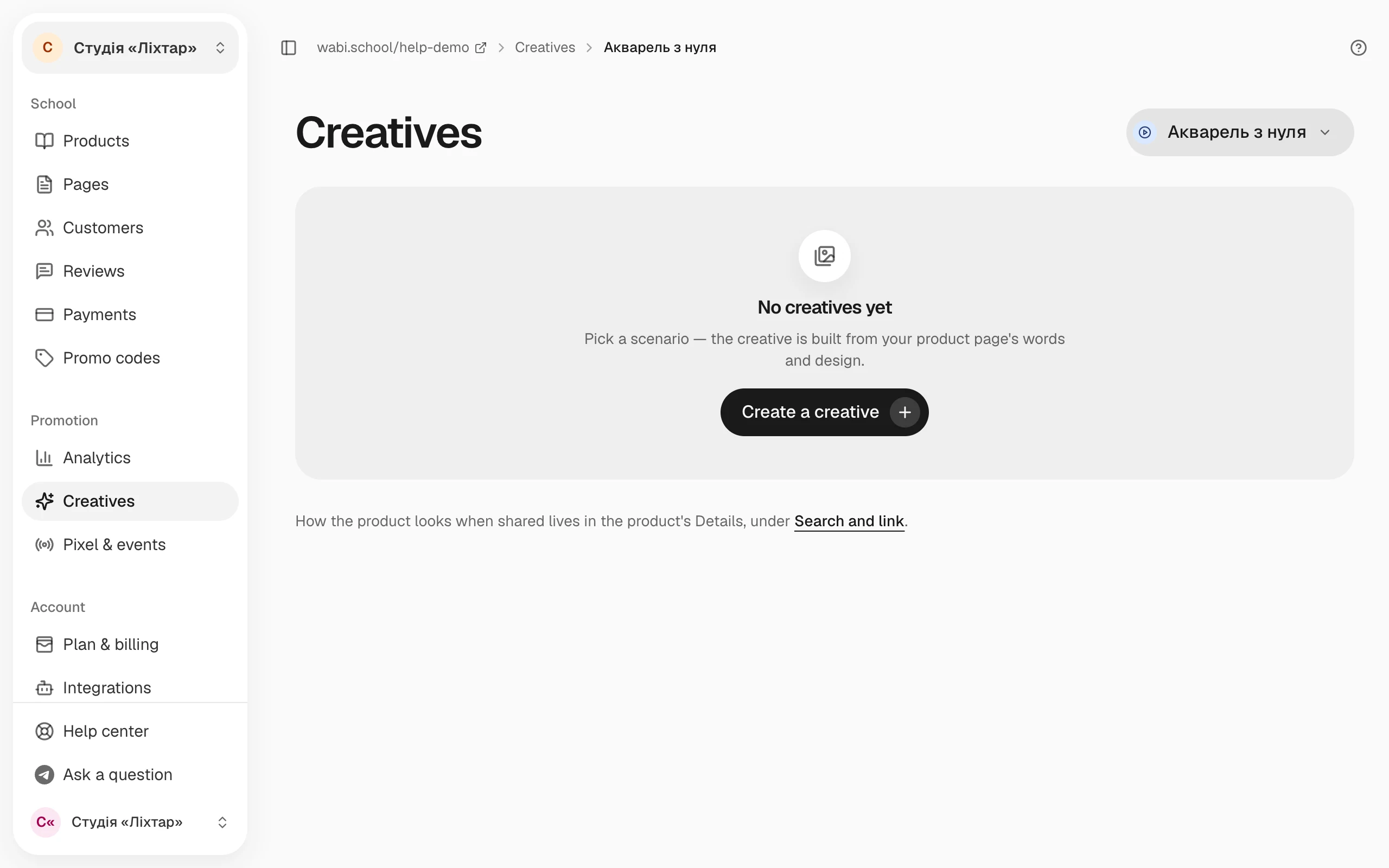
Open "Creatives", click "Create a creative" and choose a scenario. The creative is built from your product page's texts and design. Change texts, photos and layout right on the canvas, then click "Download" and choose PNG or JPG. The creative saves itself.
In this guide
A creative is a ready image for ads or social media: one post in several formats, or a series of slides. Wabi takes the texts, facts and design of the product page for it, so the creative looks like your page. Each product has its own creatives.
Create a creative
- Open Creatives. It opens the product whose creative you changed last, or your newest product. Choose another product in the menu at the top.
- Click Create a creative.
- Choose a scenario. The Post and banners group makes one image, the Carousel and Stories group makes a series of up to 10 slides. A scenario that lacks data (for example, reviews or a start date) isn't listed.
- Click an element on the canvas to change its text, photo or colour. You can drag and resize elements on a tablet or computer.
- At the top, choose a format: 4:5 · feed, 1:1 · square, 9:16 · stories or 1.91:1 · link. A new format is added to the creative with its own layout.
There is no save button: every change saves itself a moment later.
What you can change
- Add: a heading, text, button, shape, Photo (from your device or the media library) or Course data: the price, start date and other current facts of the product.
- Review and Question: on a slide with a quote or a question, choose another review or question from the product page.
- Text ideas: select a text or a button and click Suggest text. AI suggests the options, and the numbers, prices and dates in them come only from the product's facts.
- Style: brand colour, fonts, photos and background. If the page design changed after you created the creative, click Update from design.
- Reset layout brings back the scenario's layout if you moved elements by hand. A format you arranged by hand isn't re-laid when a text changes. Wabi then asks you to look at it again: check it and click Checked.
Download the files
- Click Download.
- Under File, choose PNG or JPG. JPG is lighter.
- Choose This format or an archive with all formats or all slides. A 4:5 or 1:1 carousel can also be downloaded as a PDF for LinkedIn.
File sizes: 1080×1350 for 4:5, 1080×1080 for 1:1, 1080×1920 for 9:16 and 1200×630 for 1.91:1.
The same menu has two more actions:
- Save to media library: the creative appears in your brand's media library under the Creatives filter.
- Use as the link card: available when the creative has the 1.91:1 · link format. This image shows when someone shares a link to the product in messengers and social media. You can check it in the product: Details → Search and link.
To see which creative brings buyers, give each one its own tagged link: How to read your school's analytics.