
How to sell a digital product, such as a book, PDF or templates
How to create a digital product, upload files, set up a tariff with lifetime access, and what the buyer gets after paying.
Short answer
Create a product of the "Digital product" type, upload files in the "Files" section and publish the product. After paying, the buyer gets an email with a button to the page where they download the files. The first tariff gives lifetime access; you can change the period in the "Tariffs" section.
In this guide
A digital product is a set of files the client downloads right after paying: an e-book, a PDF, templates, spreadsheets, an archive or audio. It has no lessons.
Create the product
- On the Products page, start creating a new product.
- At the Type step, choose Digital product.
- Go through the other steps as you would for a course: How to create your first course in Wabi. At the Price step, enter a price or make the product free.
- Click Create product.
The product is created as a draft. You can't change a digital product's type later.
Upload the files
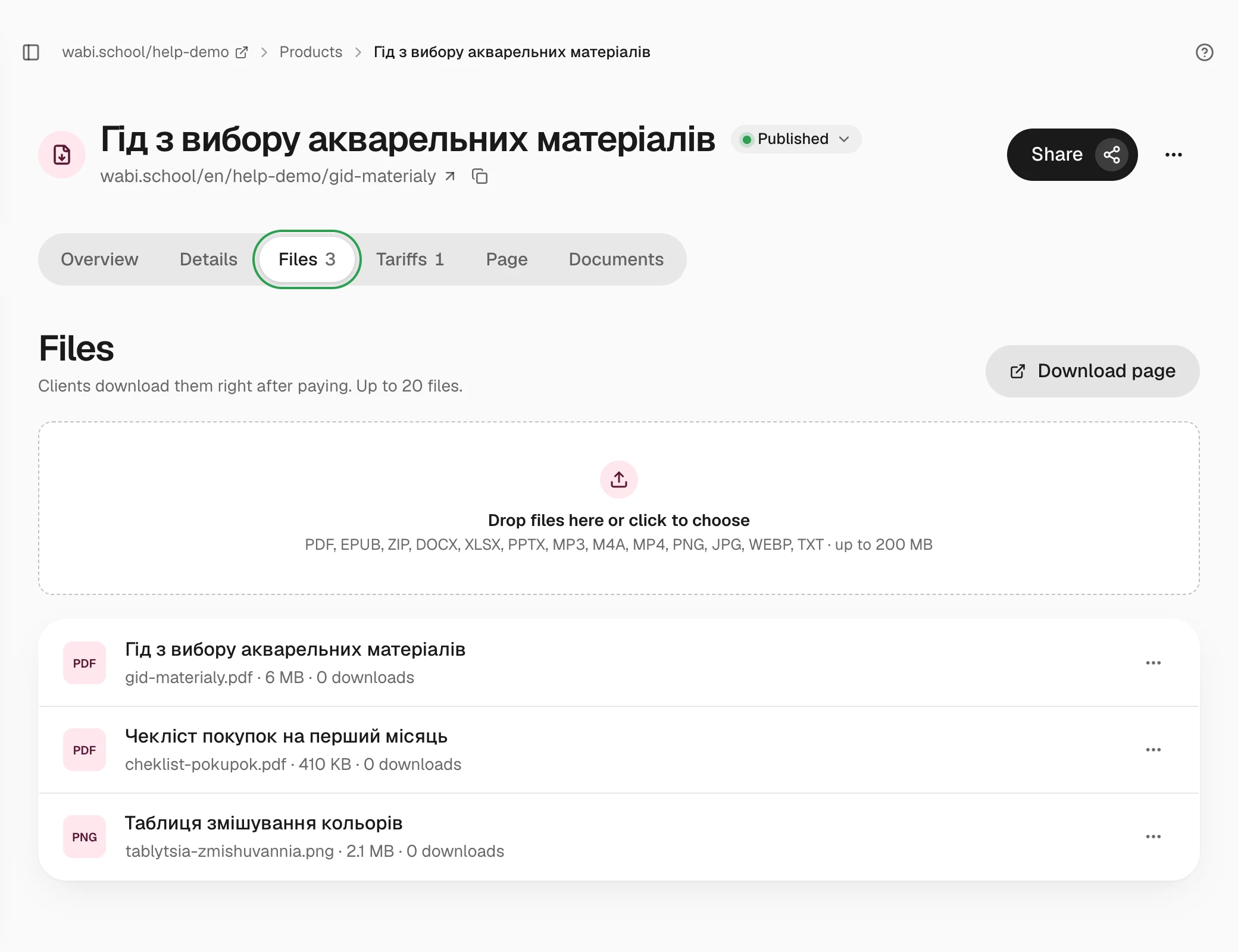
- Open the product and go to the Files section.
- Drag files into the box, or click it to choose them on your computer.
- Wait until each file finishes uploading.
Supported formats are PDF, EPUB, ZIP, DOCX, XLSX, PPTX, MP3, M4A, MP4, PNG, JPG, WEBP and TXT. One file can be up to 200 MB, a product can hold up to 20 files, and all of your school's files together can take up to 2 GB.
A file's menu has Rename, Move up, Move down and Delete. The name and order are what the buyer sees. Each file shows how many times it was downloaded. The Download page link shows the page the way a buyer sees it.
Set up the tariff
The wizard creates one tariff with lifetime access. To change it or add others, open the Tariffs section:
- In the Access after payment block, choose a period from one month to a year, a custom period in days, or forever. When access ends, the files can no longer be downloaded.
- A price of 0 makes the product free, for example as a gift for subscribing to your newsletter. A free product doesn't need a payment system.
- Discounts and spot limits work the same as for a course: How to set up tariffs for a product.
A digital product's tariff can only be a one-time payment: there is no subscription or jar for it, and you can't add it to a bundle with courses.
Publish the product
A product without files can't be published: Add at least one file to publish a digital product. The other steps are the same as for a course: How to prepare and publish a course.
What the buyer gets
Right after paying, the buyer gets an email with a button to the Your files page. To open it, the buyer signs in with a code from their email. See How to sign in to your course after buying.
Each file has a Download button. Every click creates a new link to the file that works for 10 minutes, so a link forwarded to someone else soon stops working. The buyer can come back to the files at any time while their access lasts. After a refund, the files can no longer be downloaded.