
How to sell an event: a webinar, workshop or meetup
Create an event, sell tickets with limited spots, write the "How to join" instructions for buyers, and know what to do after the event date.
Short answer
Create a product of the "Event" type and set the date and time. In the "Tariffs" section, each tariff is a ticket: fill in its "How to join the event" field with the link and time. Buyers see that text only after paying, on the access page and in the email.
In this guide
Create the event
- In Products, create a new product and choose the Event type.
- Write a title and description, and set the Event date and time. You can't create an event without a date, and the date can't be in the past.
- Set the ticket price and click Create event.
The event is created as a draft. Attendees won't see it until you publish it. You can change the date later in the Details section.
Programme
In the Programme section, add programme items with a short description. The programme appears on the sales page so visitors know what to expect. Events have no lessons.
Tickets and instructions for attendees
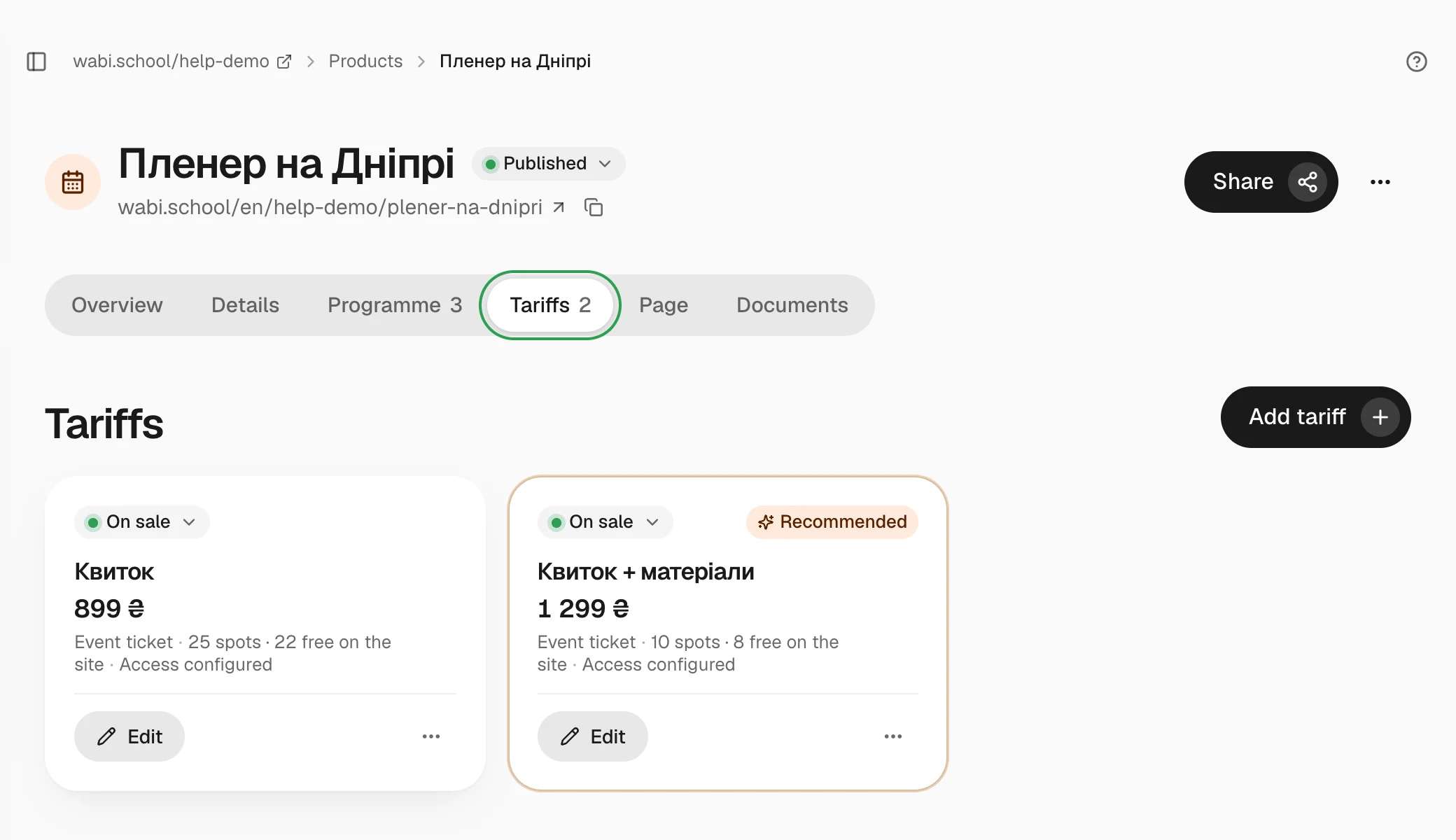
Each tariff of an event is a ticket. Open the Tariffs section and fill in these fields for each ticket:
- How to join the event: the date, time, meeting link, address or instructions. Only people who bought that ticket see this text.
- Telegram link: optional. A link to a chat or channel for attendees.
- Number of spots: if places are limited. When they run out, the page shows Sold out.
While the instructions are missing, the ticket shows Add access info and you can't publish the event: Add access info or a Telegram link to every active event tariff.
A ticket can't be a subscription or a jar.
What the buyer gets
Right after payment, the buyer gets a confirmation email (its subject is in Ukrainian, «Участь підтверджено») with the instructions and a button to the How to join page. That page has the same text and a Telegram button. To open it, the buyer signs in with a code from their email: How to sign in to your course after buying.
Before the event date, the sales page shows how long is left until the start.
After the event
Wabi doesn't send automatic reminders before the event. Write to attendees yourself if you need to.
The event doesn't close on its own after the date. To stop selling tickets, move the event to the archive. It disappears from your school's storefront, and people who bought still see the access page.